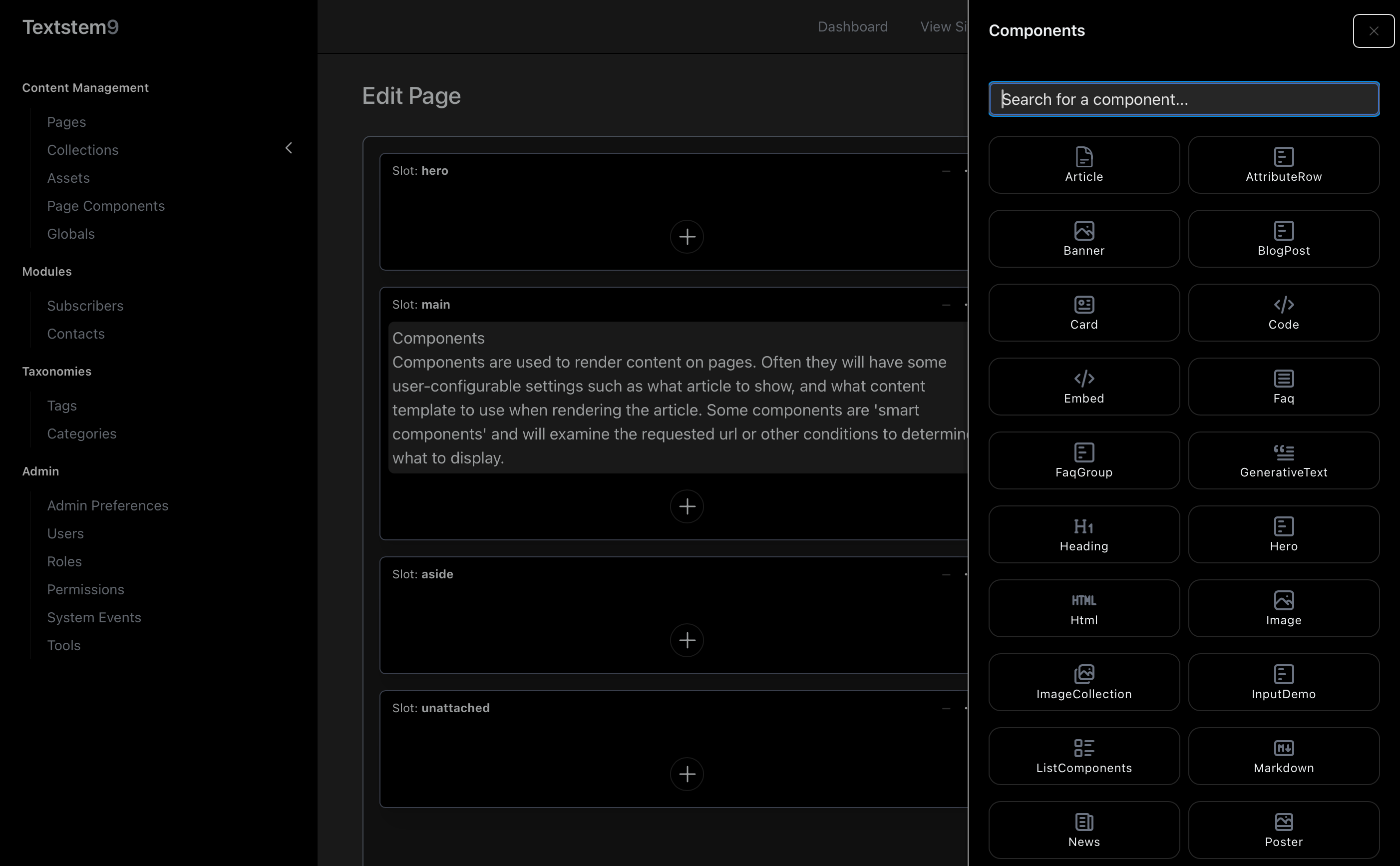
Understanding Slots
Each page uses a template that defines one or more named slots (also called regions). Slots represent distinct areas of the page layout -- for example main, sidebar, header, or footer.
In the page builder, each slot appears as a collapsible panel with a heading showing the slot name. Components within that slot are stacked in the order they will appear on the page.
If a component's assigned slot no longer exists in the current template, it is moved to an unattached group at the bottom and will not appear on the public page until reassigned.
View Modes
The page builder has two view modes, selectable at the top of the page:
| Mode |
Description |
| Preview |
Renders each component using its actual Blade template. Shows a close approximation of the live appearance |
| Skeleton |
Shows only the component type name, template variant, and title in a compact list. Faster to work with on complex pages |
Adding a Component
- In the slot where you want to add content, click the + button at the bottom of the slot, or open the slot's menu (the three-dot icon in the slot header) and choose Add Content.
- A slide-over panel opens showing all available component types. Each type has an icon and description.
- Use the search box to filter by name.
- Click the component type you want to add. The component is created in a disabled state and its editor opens immediately.
To insert a component at a specific position rather than at the end, hover over an existing component and click the + button that appears in its toolbar. The new component is inserted directly after it.
Component Controls
Hovering over a component in the page builder reveals a toolbar along its top edge:
| Control |
Action |
| Up arrow |
Move this component one position up within the slot |
| Down arrow |
Move this component one position down within the slot |
| Duplicate |
Create a copy of this component immediately after it. The copy opens in the editor |
| + |
Insert a new component directly after this one |
| Delete (bin) |
Permanently delete this component (requires confirmation) |
You can also drag and drop components to reorder them within a slot.
Clicking anywhere on the component body opens the component editor.
Editing a Component
Clicking a component opens the component editor in a slide-over or panel. The fields shown depend on the component type.
Common Fields
Every component type has these base fields, regardless of its custom fields:
| Field |
Description |
| Title |
An internal label for the component. Not shown publicly but useful for identifying components in skeleton view |
| Enabled |
Toggle whether this component appears on the public page. Disabled components are hidden from visitors but remain in the page builder |
Custom Fields
Below the base fields, each component type defines its own fields. Common field types include:
- Text / Textarea -- short or long text input
- Rich text -- a full WYSIWYG editor
- Image -- an asset selector for picking an image from the media library
- Select / Radio -- choose from a list of options
- Template -- pick which layout variant to use for this component (see below)
- Collection -- a structured repeating group of values
- List / Table -- editable rows of data
Each field may include instructions text explaining what it controls.
Template Variants
Some component types have multiple layout variants (for example a text block that can display as a standard paragraph, a pull quote, or a callout box). When a Template selector field is present, choose the variant you want. The preview updates accordingly.
Enabling and Disabling Components
Individual components can be enabled or disabled using the Enabled toggle in the editor. Disabled components show as dimmed in the page builder and are not rendered on the public site.
To act on all components in a slot at once, open the slot's menu (three-dot icon in the slot header):
- Enable region contents -- enables every component in that slot
- Disable region contents -- disables every component in that slot
Reordering Components
Components can be reordered in two ways:
- Drag and drop -- drag a component to a new position within the same slot.
- Move Up / Move Down -- use the arrow buttons in the hover toolbar.
Position changes are saved automatically.
Duplicating a Component
Hover over a component and click the Duplicate button. A copy is inserted immediately after the original and its editor opens. The duplicate starts disabled so you can edit it before making it live.
Cutting, Copying, and Pasting Between Pages
To move or copy components from one page (or one slot) to another, use the slot menu options:
- Copy contents to -- copies all components in this slot to a chosen page and slot.
- Move contents to -- moves all components in this slot to a chosen page and slot, removing them from the current location.
Individual component cut/copy/paste between slots can also be performed if the interface provides selection controls.
Importing and Exporting Slot Contents
Slot contents can be exported as a JSON file and imported elsewhere. This is useful for copying a set of components between pages or environments.
Export
Open the slot menu and choose Export contents. A JSON file is downloaded containing all components in that slot.
Import
Open the slot menu and choose Import contents. Upload a previously exported JSON file. The components from the file are added to the slot alongside any existing components.
Version History
Every time a component is saved, the system automatically snapshots its previous state. Up to 50 versions are stored per component.
To access version history (where available in the interface):
- Open the component's version history panel.
- Each version shows the date and time it was saved.
- Click Restore to roll back to that version. The current state is snapshotted before the restore, so the action can itself be undone by restoring the next version.
Deleting a Component
Hover over the component and click the Delete button (bin icon) in the toolbar. A confirmation prompt appears before the component is permanently removed.
Components use soft deletion -- a deleted component can be restored by an administrator via the Wrangler Components admin section if needed, until it is permanently purged.
To delete all components in a slot at once, open the slot menu and choose Delete region contents. This also requires confirmation.
The Wrangler Components Library
In addition to managing components inside the page builder, a standalone Wrangler Components section (accessible from the admin sidebar) lists every component across all pages. From here you can:
- Search for components by content or type.
- Open and edit any component directly.
- Restore soft-deleted components.
- Permanently purge deleted components from the trash.
This is primarily an administrative view. Day-to-day content editing is done through the page builder on individual pages.