Assets are files stored in the media library -- images, PDFs, audio files, videos, and other documents. Once uploaded, assets can be attached to posts, pages, and other content throughout the site.
Accessing the Media Library
Navigate to Assets in the admin sidebar. From here you can search the library, upload new files, and edit existing assets.
Uploading Files
Using the Upload Screen
- Go to Assets and click Upload Files.
- Either click the Click button to open a file picker, or drag files directly onto the upload area.
- A progress bar appears during upload. Multiple files can be uploaded at once.
- Once each file has finished uploading, it appears in the panel. Click it to open its details in the side panel on the right.
Files are uploaded using chunked transfer, so large files are handled reliably even on slower connections.
File Type and Size Limits
Accepted file types and the maximum file size are configured by your site administrator. If a file is rejected, an error message will indicate the reason.
Duplicate Detection
When you upload an image, the system checks whether a visually identical image already exists in the library. If a match is found:
- A "Duplicate image" badge appears on the upload preview.
- A modal appears showing thumbnails of the similar existing images, with links to open them.
- Click Cancel upload to delete the newly uploaded file and avoid the duplicate.
- Click Proceed to keep the file if it is intentionally different.
Post-Upload Processing
After a file is uploaded, the system performs background processing depending on configuration:
- Thumbnail generation -- a scaled preview image is created for use in listings and admin UI. For PDFs, the first page is rendered as the thumbnail.
- Metadata extraction -- file dimensions, duration, mime type, file size, and other technical data are extracted and stored.
- Fingerprinting -- a perceptual fingerprint is generated for images to enable duplicate detection.
If the site is using a queue worker, this processing runs in the background. The asset record is immediately available in the library, but processing information may appear shortly after upload.
If AI description generation is enabled, a description is automatically drafted for newly uploaded images using OpenAI (see the Description field below).
The Assets Listing
The listing shows all assets in the library with a thumbnail, title, type, and modification date. Use the search bar to find assets by title or other metadata.
Editing an Asset
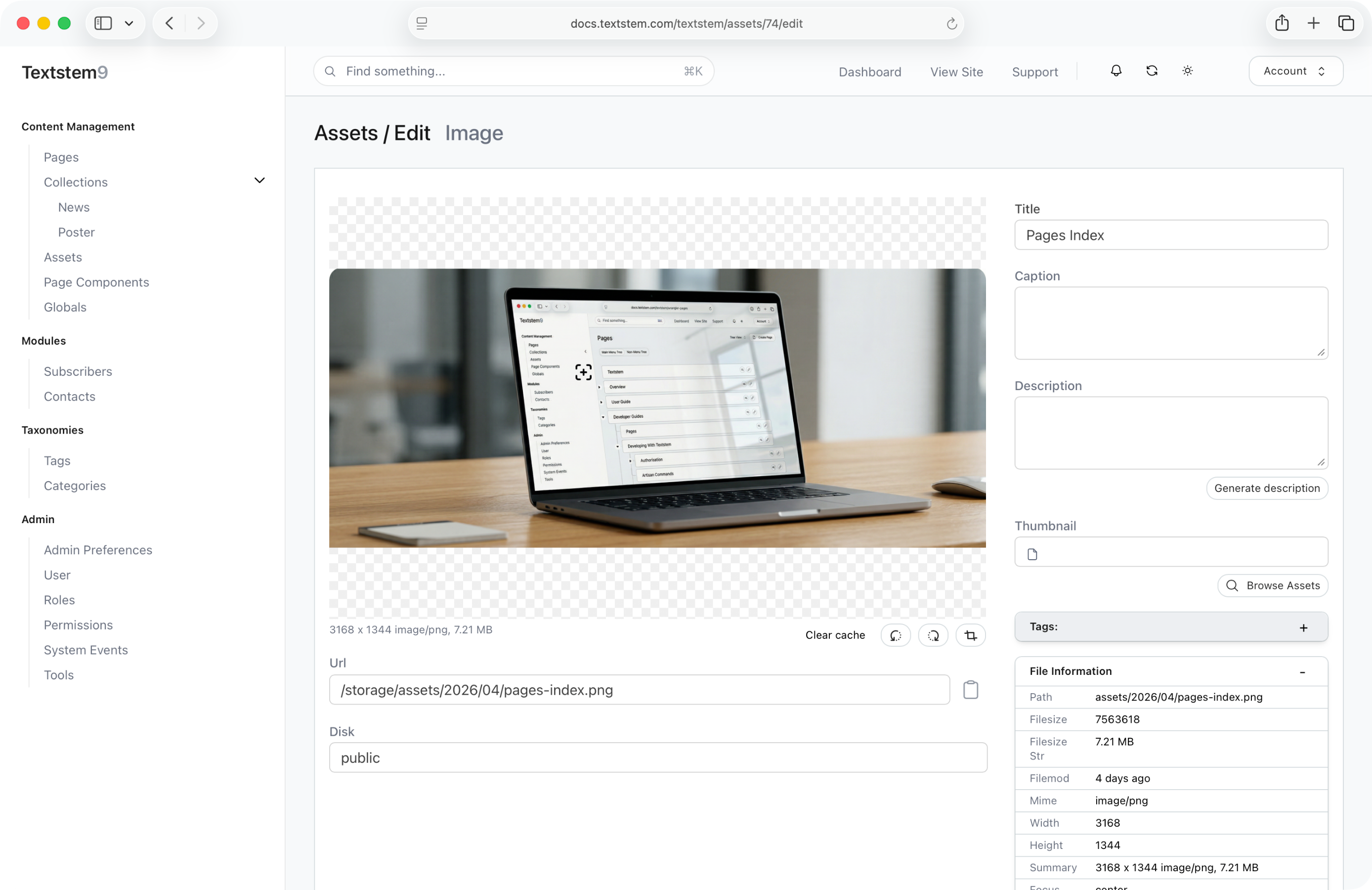
Click any asset to open its edit screen. The layout varies depending on the file type.
Image Assets
The left panel shows a full preview of the image. Available tools above the preview:
| Tool | Description |
|---|---|
| Rotate CW | Rotates the image 90 degrees clockwise and saves |
| Rotate CCW | Rotates the image 90 degrees counter-clockwise and saves |
| Crop | Opens a full-screen crop overlay. Drag the handles to define the crop area, then click Apply Crop to save. The change is permanent |
| Clear cache | Clears any cached/resized versions of the image so the latest version is served |
Clicking anywhere on the image sets a focus point. This tells the image service where the most important part of the image is, so automatic cropping (for thumbnails and responsive variants) preserves that area.
All Asset Types
The following fields are available for all asset types:
| Field | Description |
|---|---|
| Title | A descriptive name for the asset. Used in the admin UI and when searching. Required |
| Caption | A short caption, typically displayed below an image when used in content |
| Description | A longer description or alt text. For images, an AI generate button is available to draft this from the image content (requires OpenAI to be configured) |
| Thumbnail | An override thumbnail image. By default the system generates one; this lets you set a custom one via the asset selector |
File Information
The File Information panel (right column or sidebar) shows technical metadata extracted from the file -- dimensions, file size, mime type, source filename, and similar details. This panel is read-only.
Registering a File by URL or Path
If a file is already hosted elsewhere or stored on the server, you can register it in the library without re-uploading. Use the Add from URL / Path option (if available in your admin) to enter the path or URL directly. The asset record is created pointing to that location.
Duplicating an Asset
On the edit screen, use the Duplicate option to create a copy of the asset record (and its file). The duplicate opens immediately for editing. This is useful when you want similar metadata on multiple assets without re-uploading.
Deleting an Asset
On the edit screen, click Delete and confirm. This removes the asset record. If no other assets share the same file path, the underlying file is also deleted from storage. Deleting an asset that is still attached to posts or pages will remove the reference; the content itself is not deleted but the image or file will no longer display.
Using Assets in Content
Assets are attached to content through the asset selector component, which appears as a panel within post and page edit screens (for example, the thumbnail field on posts). The selector lets you:
- Browse and search the library.
- Upload a new file without leaving the content edit screen.
- Select an existing asset to attach it.
Asset Types
The system recognises the following asset types automatically based on the uploaded file's mime type:
| Type | Examples |
|---|---|
| image | JPEG, PNG, GIF, WebP |
| audio | MP3, WAV, OGG |
| video | MP4, MOV, WebM |
| (other) | PDF, Word documents, spreadsheets, archives |
Each type has a tailored edit screen. Non-image types show a generic form with a title, caption, description, and the ability to assign a custom thumbnail.